Troubleshooting the Keyword Database
Most Keyword Database problems come from scope, freshness, permissions, filters, or background jobs. Start by checking what keyword set is active and whether the data needed for the decision exists yet.
Empty or surprising views
Check active list, search, filters, saved preset, and visible columns before assuming data is missing.
Missing metrics
Check Data Health, data date, source, market, and whether enrichment or SERP data has been requested.
Access and billing
Permission, balance, and role issues can block actions that fetch, refresh, export, or track data.
A keyword list looks empty
Check these in order:
Metrics are missing or stale
Missing metrics usually mean the row has not been enriched, the provider did not return data, the market differs, or the data is old enough that Data Health is low.
Check:
- Data Health
- Data date
- Source
- Language and country
- Whether the metric requires paid data
- Whether a recent refresh is still running
- Whether the keyword exists in the provider data set
Do not refresh the whole workspace automatically. Scope the refresh to the list or filtered set that matters.
SERP or tracking data is missing
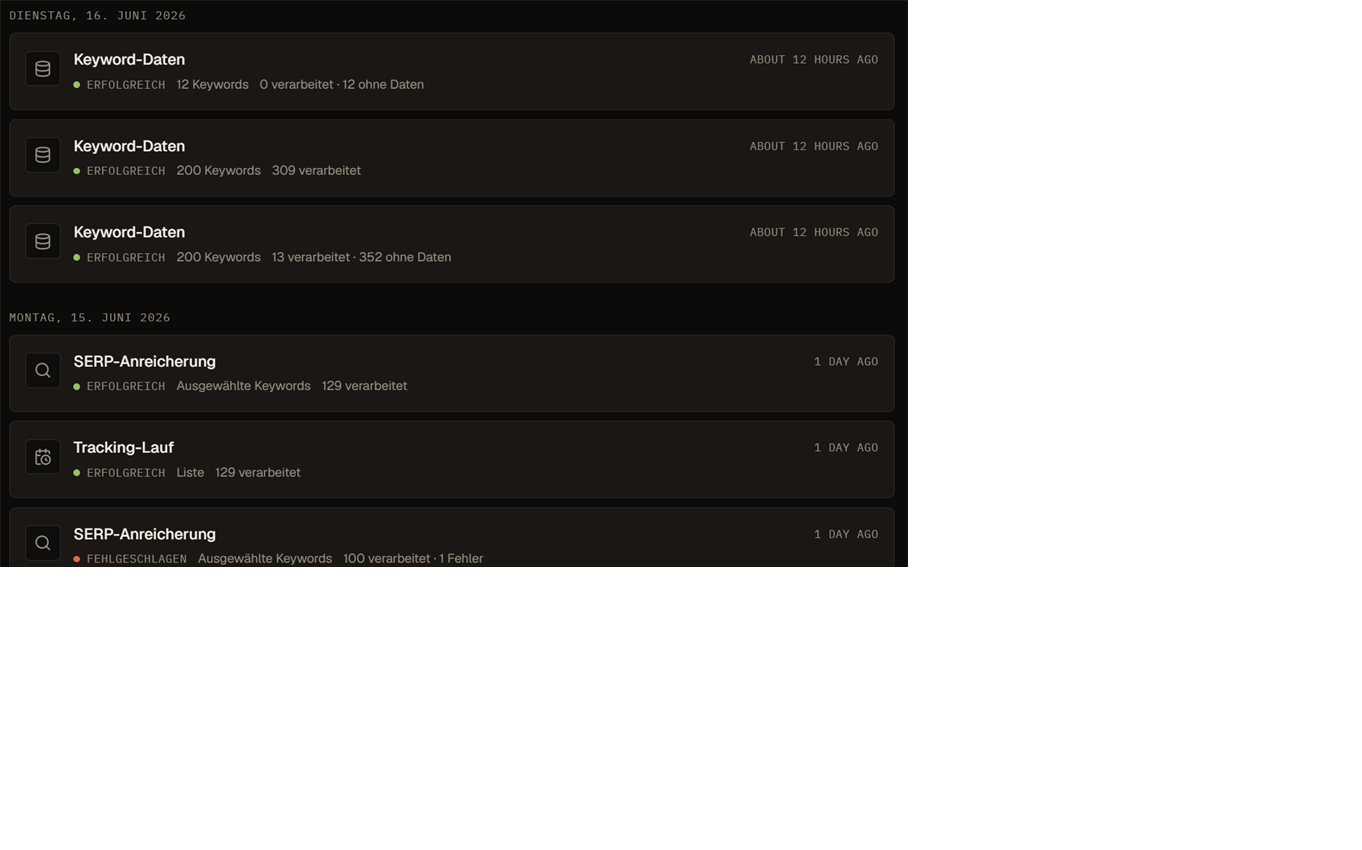
SERP and tracking data require the right market, tracked domain, and data run. If position or visibility is missing, confirm:
- The tracked domain is correct
- The keyword is in a tracking set
- The market and language match the intended SERP
- The latest tracking or SERP job completed
- The domain appears in the fetched result set
- The active filters are not hiding unknown values
Import created unexpected rows
Imports are only as clean as the input file. Before re-importing, check whether the file contained empty rows, notes, full article titles, duplicate phrasing, several markets, or columns with ambiguous names.
If the problem is limited, clean the source and import a smaller test batch first. Then tag or list the batch so it is easy to review.
Export is missing rows or columns
Exports follow the selected scope and visible setup. If an export looks wrong, check:
- Active workspace or list
- Search query
- Filters
- Saved preset
- Selected rows
- Sort order
- Visible columns
- Whether the data was available before export
A paid action did not run
Paid data actions can be blocked by permissions, insufficient balance, invalid scope, provider limits, or a background job failure. Check the balance widget, user role, selected keyword count, and Activity.