Keywords, lists, and tags
Lists and tags are the organizing layer of the Keyword Database. Use them to turn a large keyword inventory into campaigns, topic groups, tracking sets, client shortlists, and review-ready exports.
Keywords are workspace records
A keyword can be manually added, imported, discovered, enriched, tracked, tagged, listed, exported, and refreshed without becoming a duplicate.
Lists define scope
Lists decide which keyword set your team is working on: manual selections, rule-based smart lists, or hybrid lists with both rules and overrides.
Tags add flexible labels
Tags can overlap across lists, markets, content types, campaigns, or review states without moving a keyword out of its current list.
Keywords
A keyword row represents a normalized search query inside the workspace. The UI may preserve a readable display version, but matching and deduplication rely on a normalized form so that casing and small input differences do not create noisy duplicates.
The keyword count in the header reflects the active scope. In the whole workspace, it counts visible workspace keywords. In a list, it counts that list. When filters are active, it reflects the filtered result set.
Good keyword inputs are short search queries, not article titles. A keyword such as "best crm for agencies" is useful because it carries intent. A full title such as "The complete guide to choosing the best CRM for your agency in 2026" should usually be shortened before import.
Lists
Lists are named keyword collections. They answer the question: "Which keyword set are we working on right now?"
Use manual lists when a strategist or editor decides the membership directly. Use smart lists when membership should update from saved rules, for example all commercial keywords with low KD and enough volume. Use hybrid lists when a rule-based scope still needs hand-picked additions or exclusions.
Common list patterns:
- Campaign lists for upcoming client work
- Topic lists for a content hub or cluster
- Tracking lists for recurring position checks
- Export lists for client reporting or external review
- Market lists for language, country, or region-specific work
- Refresh lists for keywords whose data needs to be updated
The plus button in the left navigation creates a list. Give lists names that will still make sense later, such as "CRM DACH - Q3 tracking", "Agency quick wins", or "Product pages - refresh candidates".
Manual lists
Manual lists are controlled by explicit membership. Add selected keywords to a manual list when a person made a decision about the set. Manual lists are best for campaign planning, client-approved shortlists, handpicked tracking sets, and exports that should not change unexpectedly.
Manual lists should not be used as a replacement for every temporary filter. If the list is only "keywords currently matching KD under 30", save a preset or smart list instead.
Smart lists
Smart lists are rule-based. They update when keyword rows match the saved criteria. Use smart lists for durable operational views such as high-CPC terms, low-difficulty opportunities, stale data, missing SERP data, or ranking losses.
Smart lists are useful when the team wants the list to stay current without manual maintenance. They are risky when stakeholders expect the membership to stay frozen, because a data refresh can change what qualifies.
Hybrid lists
Hybrid lists combine rules with manual decisions. They are useful when a saved logic defines the base scope, but a strategist still needs to add exceptions, exclude irrelevant terms, or keep important client keywords in the set.
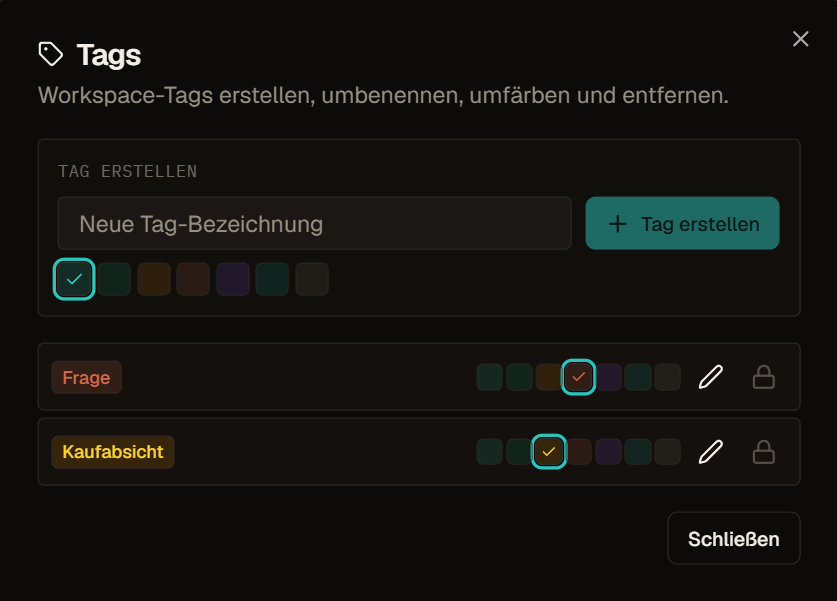
Tags
Tags are reusable workspace labels. They answer the question: "How should this keyword be marked across different contexts?"
Use tags for cross-cutting labels such as market, funnel stage, content type, campaign, owner, review state, client priority, or internal notes. A keyword can have several tags at once. That makes tags better than lists when the same keyword belongs to multiple working contexts.
Examples:
market: dachintent: commercialowner: content teamclient-priorityneeds-serp-refreshpublish-q3
List vs tag vs preset
| Need | Use |
|---|---|
| A named keyword collection | List |
| A flexible label that can overlap with other labels | Tag |
| A saved table setup with filters, sort, and columns | Preset |
| A one-time narrowed table view | Filter |
| A stakeholder-ready file | Export |