Import, add keywords, and export
The Keyword Database is only useful when teams can get data in cleanly and get decisions out clearly. Use manual add for small batches, import for larger sets, and export only after the scope is deliberate.
Manual add
Add a few known terms quickly, one keyword per line, without preparing a file.
Import
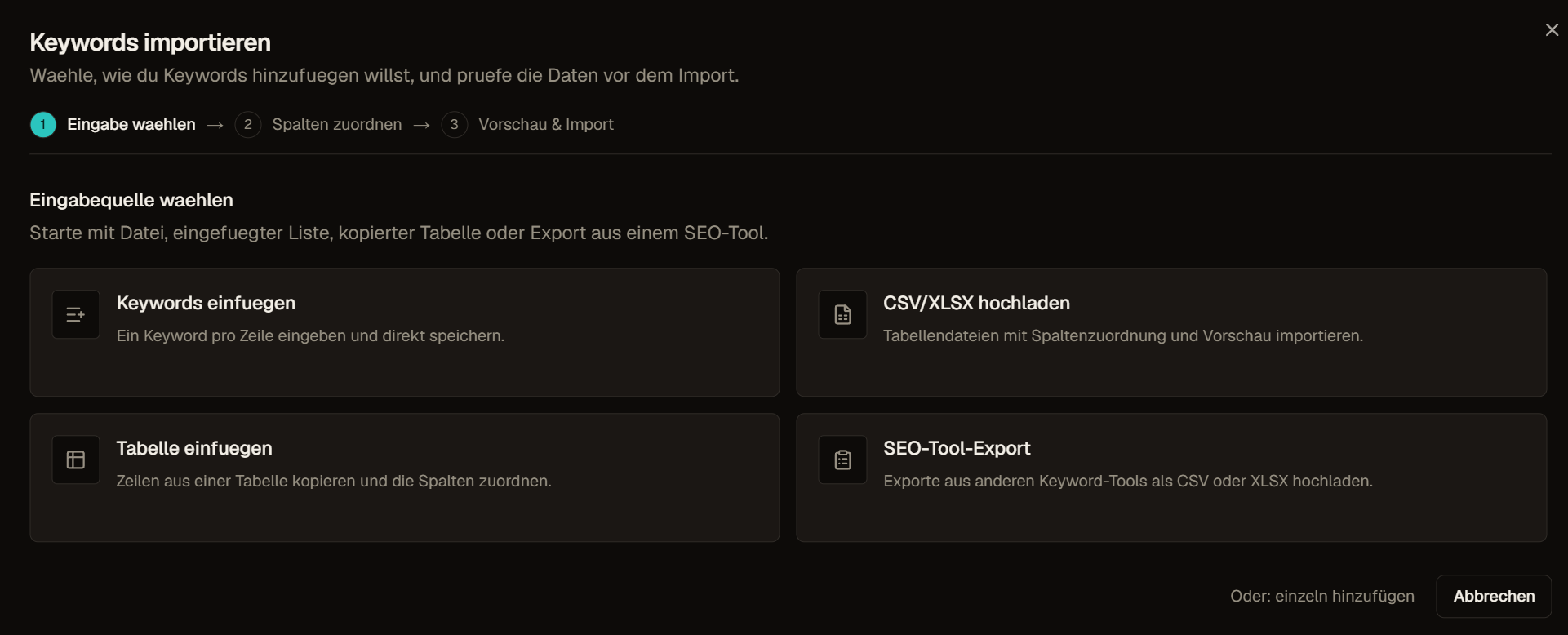
Bring larger keyword sets into the workspace with validation and batch handling.
Export
Share the current scope, selection, list, or filtered view with the columns stakeholders need.
Add keywords manually
Use Add keyword when you have a short set of known search queries. Paste one keyword per line. Keep each input close to how a user would search.
Good inputs:
crm software for agenciesbest crm for small teamssales pipeline toolcrm pricing comparison
Weak inputs:
- Full article titles
- Long sentences
- Several intents in one line
- Duplicates with minor casing changes
- Notes or comments mixed into the keyword field
Manual add is best for quick ideas, stakeholder suggestions, seed terms, and small review batches. Use import for larger files or migration work.
Import keyword files
Imports are for larger keyword sets. They should validate the input, normalize keywords, avoid obvious duplicates, and preserve enough source information for later audit.
Before importing, clean the source file:
- Keep one keyword per row
- Remove empty rows and notes
- Split unrelated markets into separate imports
- Preserve useful columns such as volume, intent, language, or country when they are available
- Avoid mixing client exports from different accounts unless the workspace is meant to combine them
After import, open the Activity view if the batch needs verification. Then use filters and columns to check data coverage before using the rows for planning.
Export keyword data
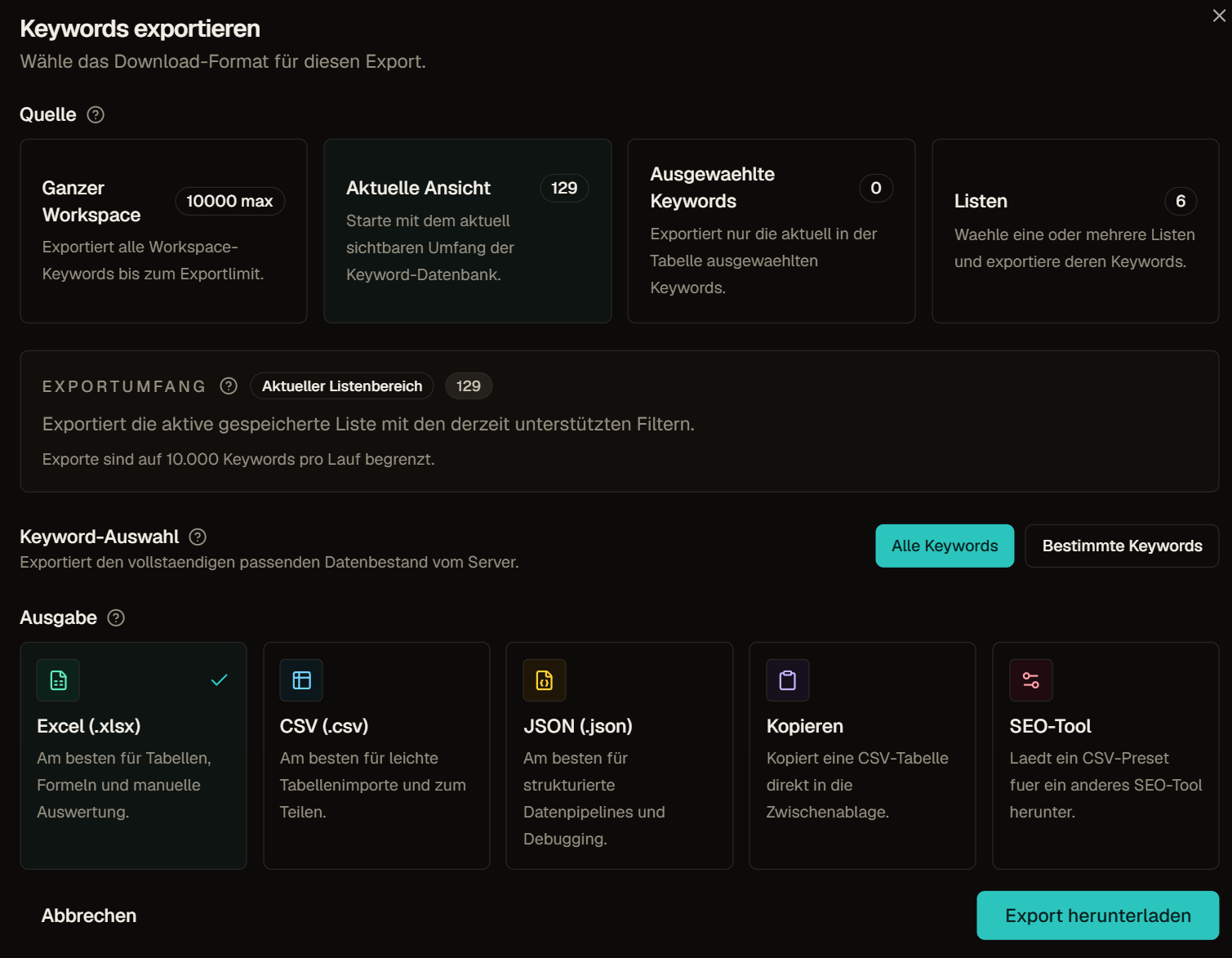
Export writes keyword data out of Contextter. The export should match the decision, not simply dump every available row.
Export scopes can include:
- The full workspace
- A selected list
- The current filtered view
- Selected keywords
- A client-ready shortlist
Before exporting, check:
- The right list or workspace scope is active
- Search and filters are intentional
- Sort order is meaningful
- Visible columns match the audience
- Sensitive internal notes are not included
- The data is fresh enough for the purpose
Export examples
| Export type | Recommended setup |
|---|---|
| Client shortlist | List scope, limited columns, readable labels, no internal-only tags |
| SEO planning export | Volume, KD, CPC, intent, Data Health, SERP Dynamics, Visibility Index |
| Tracking report | Current position, position change, historical deltas, visibility, data date |
| Data QA export | Source, data date, Data Health, language, country, missing SERP fields |
| Paid opportunity review | CPC, bid range, competition index, ad cost, ad impressions, intent |