Views in the Keyword Database
Views are different ways to work with the same keyword set. Switching views should change the question you are answering, not create a separate database.
List for detailed work
Sort, filter, select, tag, export, and compare table metrics when precision matters.
Matrix for prioritization
Compare demand and difficulty visually when the team needs quick planning conversations.
Kanban for workflow
Move keyword candidates through states so the shortlist becomes actionable work.
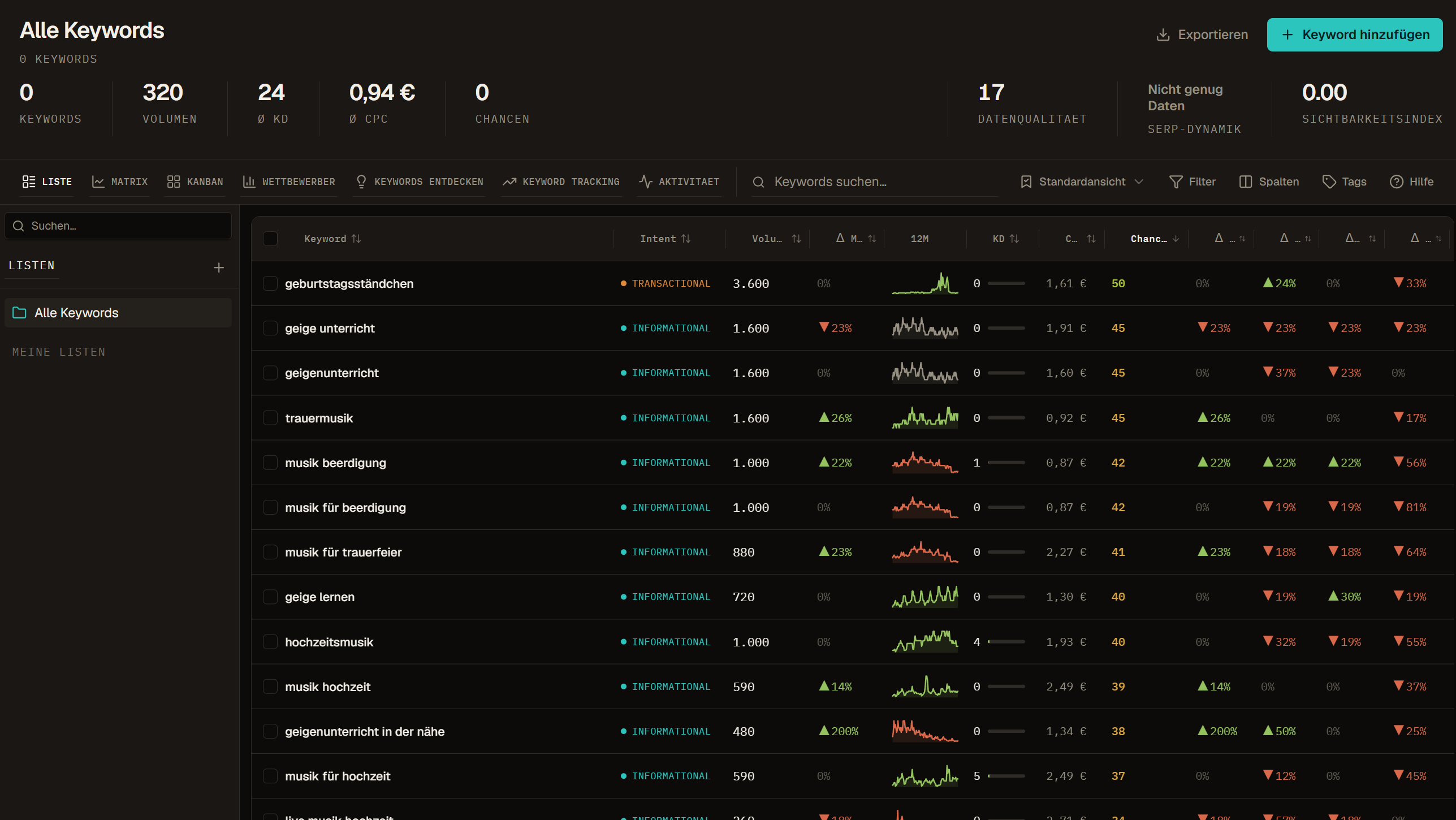
List view
List view is the primary work surface. Use it when you need detail: table metrics, sorting, row selection, filters, tags, visible columns, exports, and bulk actions.
List view is best for:
- Reviewing large keyword sets
- Comparing metrics row by row
- Selecting keywords for export or list actions
- Applying tags and status updates
- Checking which data fields are missing
- Preparing a stakeholder-ready view
If a decision depends on exact values, use List view.
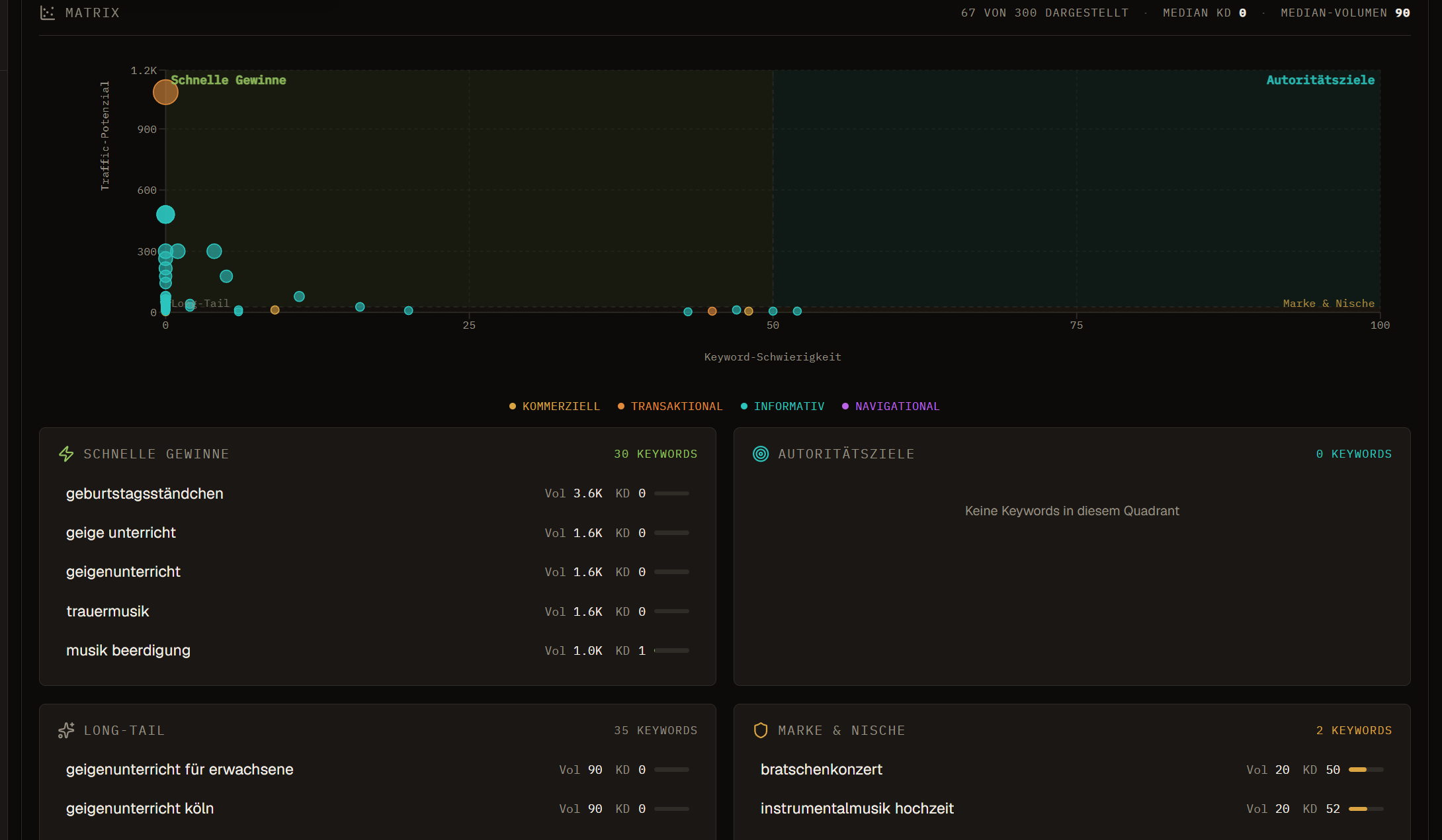
Matrix view
Matrix view turns opportunity signals into a visual map. It is useful when the team needs to compare demand against difficulty and quickly spot clusters of keywords that deserve attention.
Use Matrix view to discuss:
- High-volume, lower-difficulty quick wins
- High-demand but high-competition authority bets
- Low-volume long-tail opportunities
- Keywords that look like outliers
- Campaign clusters that need deeper review
Matrix view is a planning tool. After choosing a promising area, return to List view to inspect exact rows, SERP data, status, tags, and export fields.
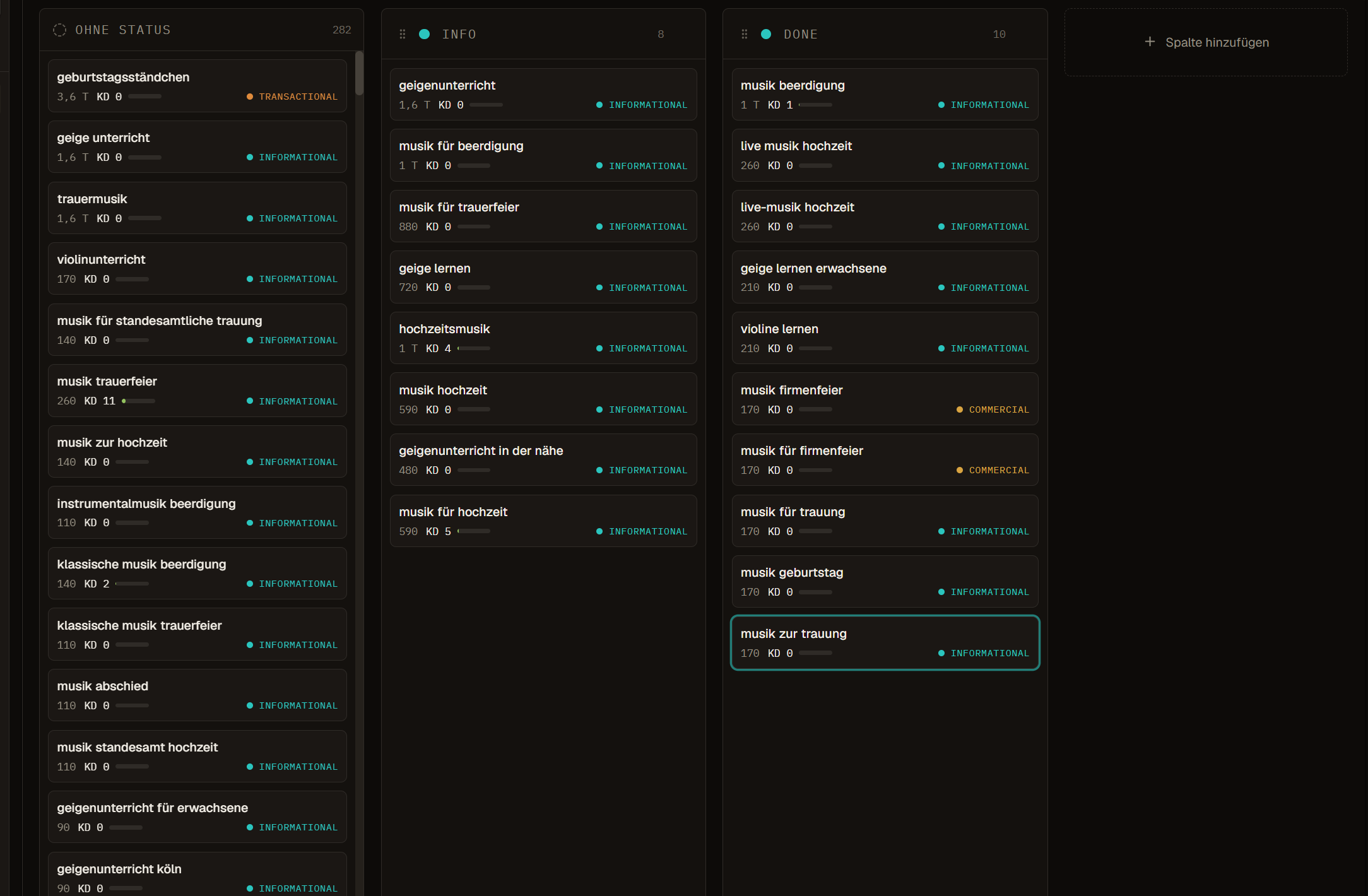
Kanban view
Kanban view turns keyword status into workflow columns. Use it when the question is no longer "Which keyword is interesting?" but "What should happen next?"
Typical Kanban stages include backlog, research, in progress, published, tracking, and archived. Your team may use custom naming, but the purpose should stay clear: every moved keyword should represent a real workflow decision.
Kanban view is best for editorial planning, review meetings, client shortlist work, and keeping opportunities from sitting in a static table forever.
Opportunities view
Opportunities turns stored keyword, SERP, competitor, tracking, and data-health signals into a ranked next-action list. Use it when the question is not just "which keyword looks good?" but "what should we do next?"
Use Opportunities to decide whether a keyword should become new content, an optimization task, a defended ranking, a data-refresh candidate, or a monitored keyword. The score is a Contextter decision aid, not a provider metric.
Competitors view
Competitors view summarizes domains that appear across the active keyword set. It helps the team understand who repeatedly ranks, where your own domain has gaps, and which competitor profiles deserve deeper review.
Use it to answer:
- Which domains appear most often across this list?
- Where does our own domain already rank?
- Which competitors overlap with the keyword set?
- Which domains should we inspect before planning content?
- Which keyword groups look like content gap opportunities?
Competitor data should support decisions, not replace SERP review. If a competitor appears often, inspect the actual ranking pages before assuming that their strategy should be copied.
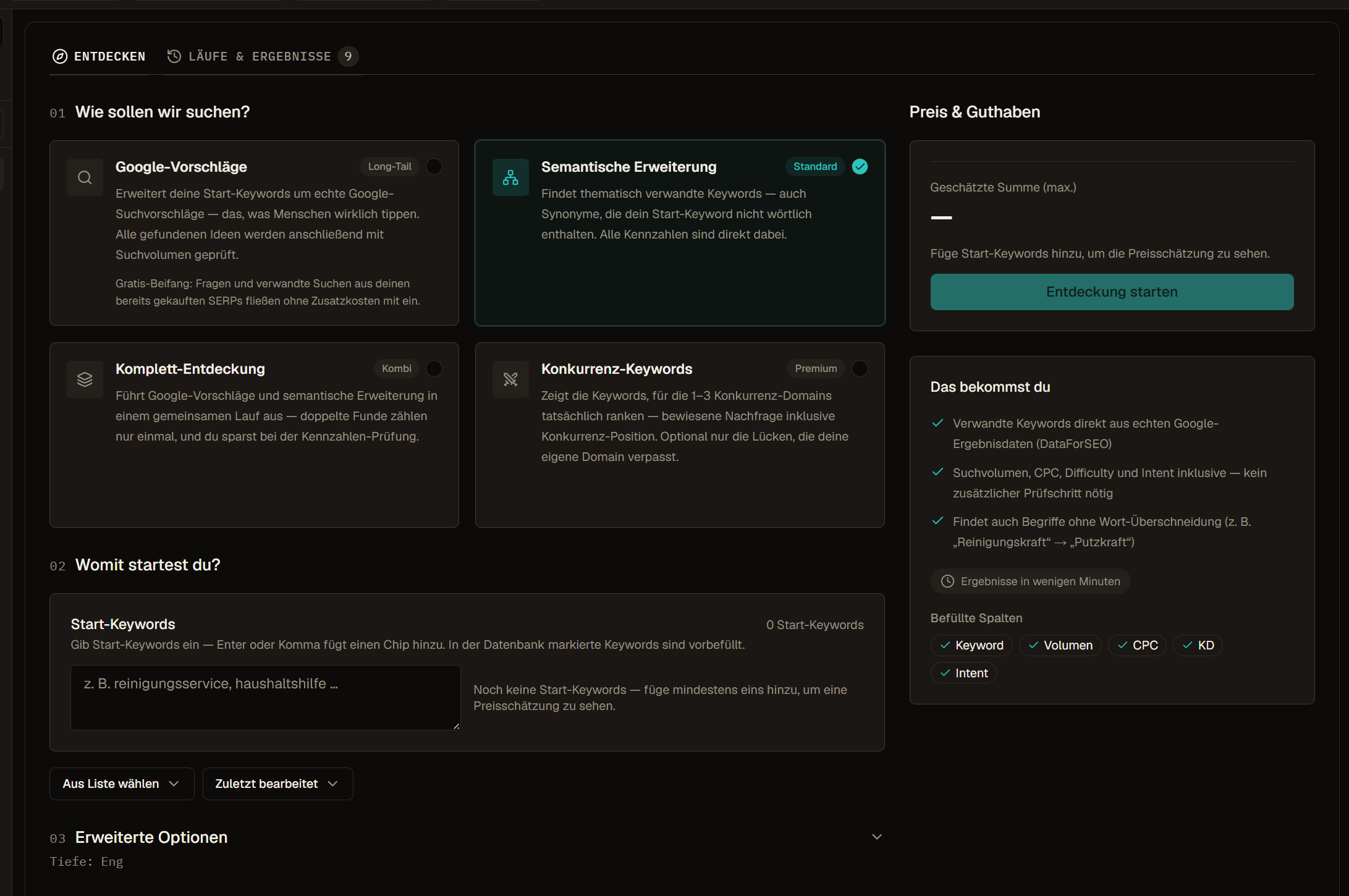
Discover keywords
Discover helps expand a keyword set from seeds, related terms, competitor signals, or suggestions. Use it when a campaign needs more ideas, a topic group feels thin, or a shortlist should be broadened before prioritization.
Discovery is strongest when it starts with a clear seed and a clear purpose. A generic seed produces noisy suggestions. A specific product, problem, audience, or competitor area produces ideas that are easier to evaluate.
Keyword Tracking
Keyword Tracking configures recurring checks for a selected list or keyword set. Tracking turns static keyword data into time-based performance data: current position, position change, historical deltas, trend direction, and visibility movement.
Use tracking for keywords that have a real owner or campaign. Tracking every keyword in a workspace usually creates cost and noise without improving decisions.
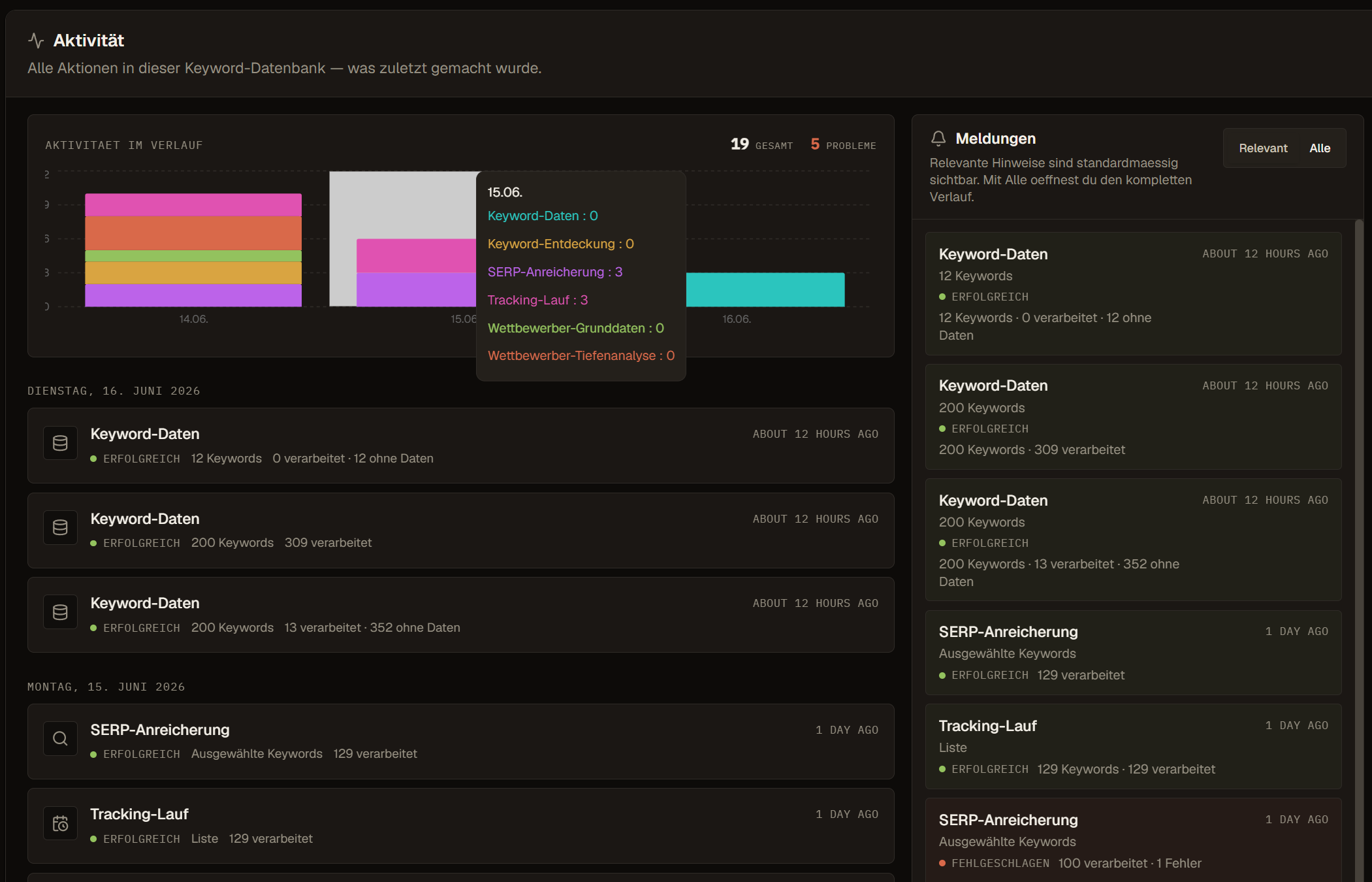
Activity
Activity shows recent Keyword Database jobs and important changes: imports, enrichments, tracking runs, SERP updates, exports, and other background work. Use it when a user asks whether a batch finished or when support needs to understand why data changed.
Activity is especially helpful after large imports or paid data refreshes, because it gives the team a visible audit trail instead of leaving status inside individual rows.